Vampire Survivors Support - v3.0.0

Vampire Survivors Support for Vortex
Description
This extension adds support for Vampire Survivors to Vortex Mod Manager, enabling you to easily automate installation of mods for Vampire Survivors without having to worry about where the files are supposed to go, etc.
At this time following mod types are supported
- Mods that are designed for the VS ModLoader by Kekos and use the right file structure (e.g resources/app/.webpack/.../img.jpg)
- Other Old Engine mods that use the right file structure (e.g resources/app/.webpack/.../img.jpg). Archives that start further down, for example with
assets/orrenderer/, are placed automatically. - New Engine mods for MelonLoader (e.g Mods/mod.dll)
- New Engine mods for the IL2CPP build of BepInEx (e.g BepInEx/plugins/mod.dll)
Note that Old Engine mods that change the same file and DON'T use the VS ModLoader overwrite each other, so the VS ModLoader is recommended. Note that New Engine mods need MelonLoader (recommended) or a recent IL2CPP build of BepInEx (see Known Issues). BepInEx 5 can't load mods for the New Engine.
Mods that only contain the changed file, without its folders, still won't work.
Currently Supported Mods for Old Engine
- Simple Rebalance mod (NO VS Mod Loader)
- NG plus (NO VS Mod Loader)
- Equal Power-Ups and Passives (0.5.205) (NO VS Mod Loader)
- Custom Content Bundle Pack (NO VS Mod Loader)
- Chinese developer tools (NO VS Mod Loader)
- Exorcismus - Unholy Vespers Skin Mod (NO VS Mod Loader)
- Remove Cat Sounds (NO VS Mod Loader)
- Space Mod (NO VS Mod Loader)
- Cursed Poppea (NO VS Mod Loader)
- Lucky Egg (NO VS Mod Loader)
- Level Up stats growth (NO VS Mod Loader)
- Donald Duck Mod (NO VS Mod Loader)
- Free Evolutions - no item requirements (NO VS Mod Loader)
- Pokemon Survivors (NO VS Mod Loader)
- The Pokemon Survivors Bundle (NO VS Mod Loader)
- QoL tweaks and gameplay changes (NO VS Mod Loader)
- Monster Survivors (NO VS Mod Loader)
- Limit Broken Stats Data (NO VS Mod Loader)
- Re-add Debug Mode (NO VS Mod Loader)
- Tekken 3 Chicken Sound Effect (NO VS Mod Loader)
- Forest A audio to Brodyquest (NO VS Mod Loader)
- Extended Power Up Levels (NO VS Mod Loader)
- Vampire Survivors Thai Mod (NO VS Mod Loader)
- Better Lama Armor (NO VS Mod Loader)
- Chicken Good and Leeloo Dallas Multipass (NO VS Mod Loader)
- Multiperpose QoL Mod
- Extended Power Up Levels
- Castlevania Survivors
- Eggs Bulk Buy
- VS Mod Loader
- Movement Speed Cap
For the full List of supported and not supported Mods see
How to install
This extension requires Vortex. To install, click the Vortex button at the top of the page to open this extension within Vortex, and then click Install. Alternatively, within Vortex, go to the Extensions tab, click "Find More" at the bottom of the tab, search for "Vampire Survivors Support" and then click Install.
You can also manually install it by downloading the main file and dragging it into the "drop zone" labelled "Drop File(s)" in the Extensions tab at the bottom right.
Afterwards, restart Vortex and you can begin installing supported Vampire Survivors mods with Vortex.
Upgrading from 2.2.x
Version 3.0.0 is installed into a new folder. If you update through Vortex, the old version is removed automatically. If you install 3.0.0 manually, remove the old "Vampire Survivors Support" extension in the Extensions tab and restart Vortex; the extension warns you while both are installed.
Known Issues
Old Engine Black Screen
If you encounter a black screen this is most likely because of 2 reasons.
- You enabled the VS ModLoader but no other mod. If the VS ModLoader is enabled alone it causes a black screen.
- You're using one of Kekos mods which have some issues with Vortex files because they try to load Vortex files as mods. These issues could also occur on other mods. To fix this you just need to add the following line into the main mod file (typically called
[modname].js):
UPDATE: This now gets fixed automatically by the Extension uppon installing the Mod
.filter((dir) => dir.name !== "__folder_managed_by_vortex")

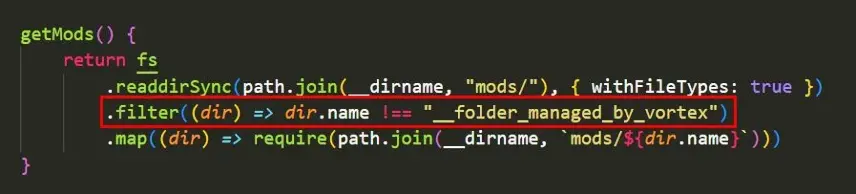 For the Multiperpose QoL Mod the file would be
 MultipurposeQolMod.js and for the Castlevania Survivors Mod it would be Castlevania.js
Empty BepInEx folders (New Engine)
Vortex's built-in BepInEx support creates empty BepInEx, BepInEx/plugins and BepInEx/patchers folders in the game folder whenever Vampire Survivors is opened in Vortex, even if you only use MelonLoader. They're harmless.
BepInEx doesn't load any mods (New Engine)
The New Engine runs on Unity 6, which older BepInEx builds can't read. BepInEx then loads no mods, and BepInEx/LogOutput.log in the game folder shows an error like this:
Unsupported metadata version found! We support 23-29, got 31
At the time of writing, the releases on BepInEx's GitHub page are too old for the game. Use the newest bleeding-edge build from builds.bepinex.dev instead:
- Open the newest build at the top of the list and download the file that starts with
BepInEx-Unity.IL2CPP-win-x64. - In Vortex, remove the old BepInEx mod, install the new zip like any other mod and deploy.
- Start the game. The first start takes a while, because BepInEx generates the files it needs for the game.
Mods for the other engine
If you install a mod that was made for the other engine (for example an Old Engine mod while the game runs the New Engine), the extension shows a warning, because the mod won't load.
How to make my Mod compatible with this Extension
Old Engine
To make your mod compatible you either need to make your mod compatible with the VS ModLoader, or you use the right file structure for your mod. Note though that if you do the latter, mods that try to change the same file will overwrite yours, so it is recommended to use the VS ModLoader.
Vampire Survivors is structured like this (most basic representation):
/Vampire Survivors
|--> VampireSurvivors.exe
|--> resources
|--> app
|--> .webpack
|--> renderer
|--> index.html
|--> main.bundle.js
|--> mod_loader (only if you installed VS ModLoader)
|--> mods
|--> your mod
|--> assets
|--> img
|--> sfx
|--> tilesets
So if you use the VS ModLoader your file structure always looks like this:
|--> resources
|--> app
|--> .webpack
|--> renderer
|--> mod_loader
|--> mods
|--> [your mod]
If you don't use the VS ModLoader your file structure can vary but should always contain every folder before your file until resources is reached. An example for the UI.png file:
|--> resources
|--> app
|--> .webpack
|--> renderer
|--> assets
|--> img
|--> UI.png
If your archive starts further down, the extension adds the missing folders: an archive that starts with mods, assets, renderer, .webpack or app, or only contains main.bundle.js, is placed correctly.
Note that the VS ModLoader only works if another mod is actually active / installed
New Engine
Mods for the New Engine are .dll files for MelonLoader or for the IL2CPP build of BepInEx.
By default the extension installs only the files the mod loaders need, without their folders:
- MelonLoader:
.dllfiles go intoMods,.cfgfiles intoUserData. - BepInEx:
.dllfiles go intoBepInEx/plugins. Archives whose top-level folder isplugins,configorpatchersare placed insideBepInExby Vortex's built-in BepInEx support.
Everything else in the archive is skipped. If your mod needs other files or a specific folder layout, add _keepstructure (see below). A typical MelonLoader mod looks like this:
|--> Mods
|--> mod1.dll
|--> mod2.dll
Which mod loader is used
- A marker file:
_melonloaderor_bepinex. - A path in the archive that mentions
MelonLoaderorBepInEx. - The mod loader that's installed. BepInEx is only chosen if MelonLoader isn't installed.
- Otherwise MelonLoader.
Marker files
Add an empty file with one of these names anywhere in your archive. The names are case-insensitive, and the marker files themselves are never installed.
| File | Effect |
|---|---|
_melonloader |
Installs the mod for MelonLoader. |
_bepinex |
Installs the mod for BepInEx. |
_keepstructure |
Installs the archive's folders as they are, relative to the game folder. |
If you have a file for example a font that needs to go in the UserData folder, add _keepstructure and use the folders of the game:
|--> _keepstructure
|--> Mods
|--> mod1.dll
|--> mod2.dll
|--> UserData
|--> font.ttf
The MelonLoader and BepInEx downloads can also be installed through Vortex like a mod.
